
How to paint on a 3D model in your browser
You can texture-paint a 3D model without installing anything. Smudgeon opens GLB and OBJ files, paints on them with the same brushes as a painting, and exports them with the full material.
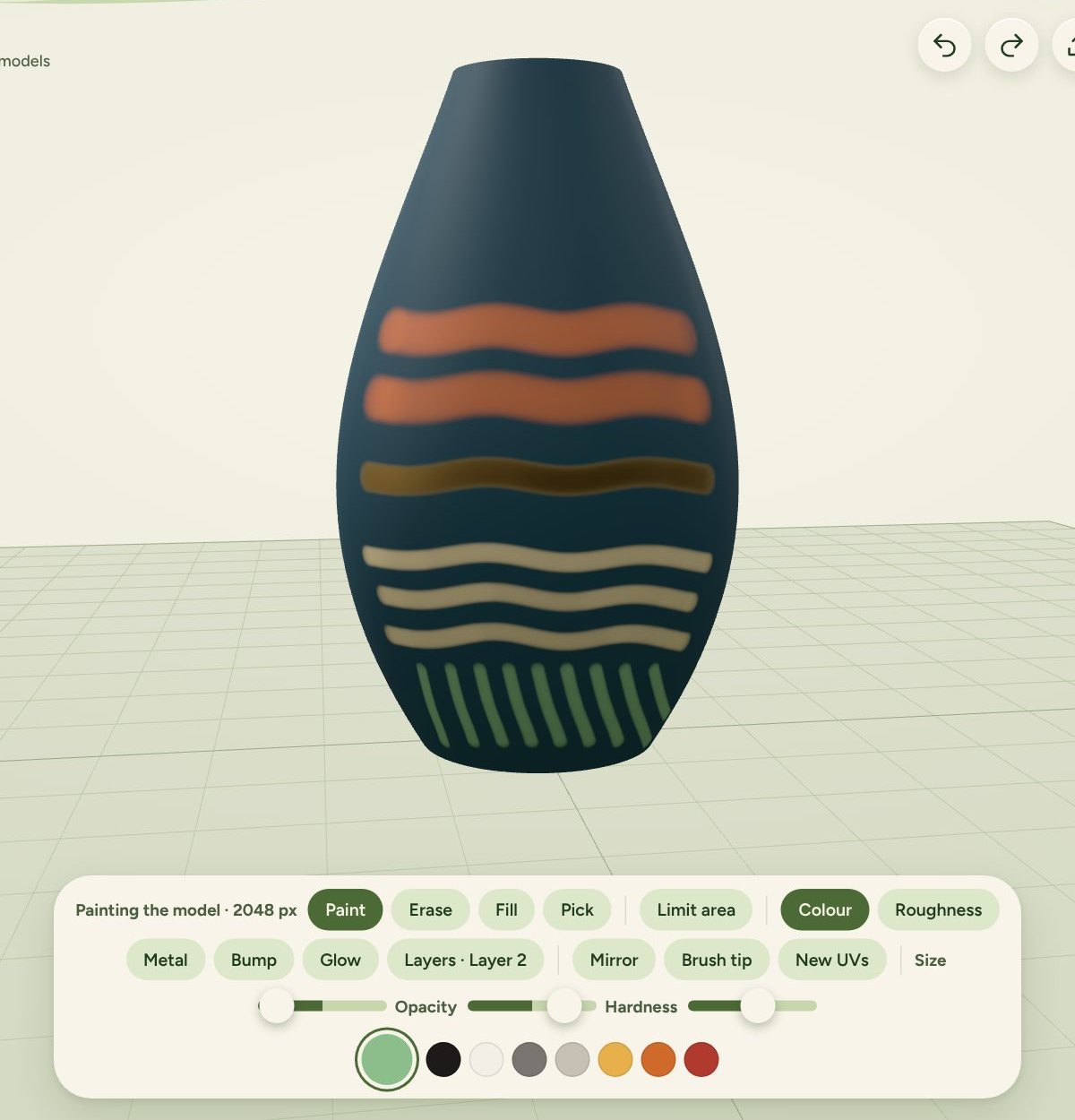
Bring in your model
Open the 3D room, tap the import button at the top and choose a GLB or OBJ file, for example a sculpt from Blender. Models without UVs get them automatically.
Choose Paint on a model
Pick Paint on a model (P) in the tool bar and tap the model. Choose a colour and drag across it: strokes wrap around the model and over seams.
Pick a real brush
Tap the brush name in the Brush row to use any brush from the library on the model, with its shape, grain and spacing. Smudge and Blur work on the model too.
Paint one side at a time
In the More row, Limit area lets you tap the sides that should take paint, so edges stay clean. Mirror paints both halves at once.
Add materials
Switch the channel to paint Roughness, Metal, Bump and Glow, each in its own layers. Stencils and patterns (brick, wood, fabric and more) wrap around the model without seams.
Export it
Export gives a GLB or OBJ with the full material that opens in Blender painted and ready, or USDZ for AR on iPhone and iPad.
Tip: Turn on the timelapse to get a video of the model turning while the paint goes on.
Try it yourself
Every feature, straight away, with no email. Nothing to install.