
How to record a timelapse video of your painting
You do not need a screen recorder. Smudgeon records every painting as you work and turns it into a short video when you ask.
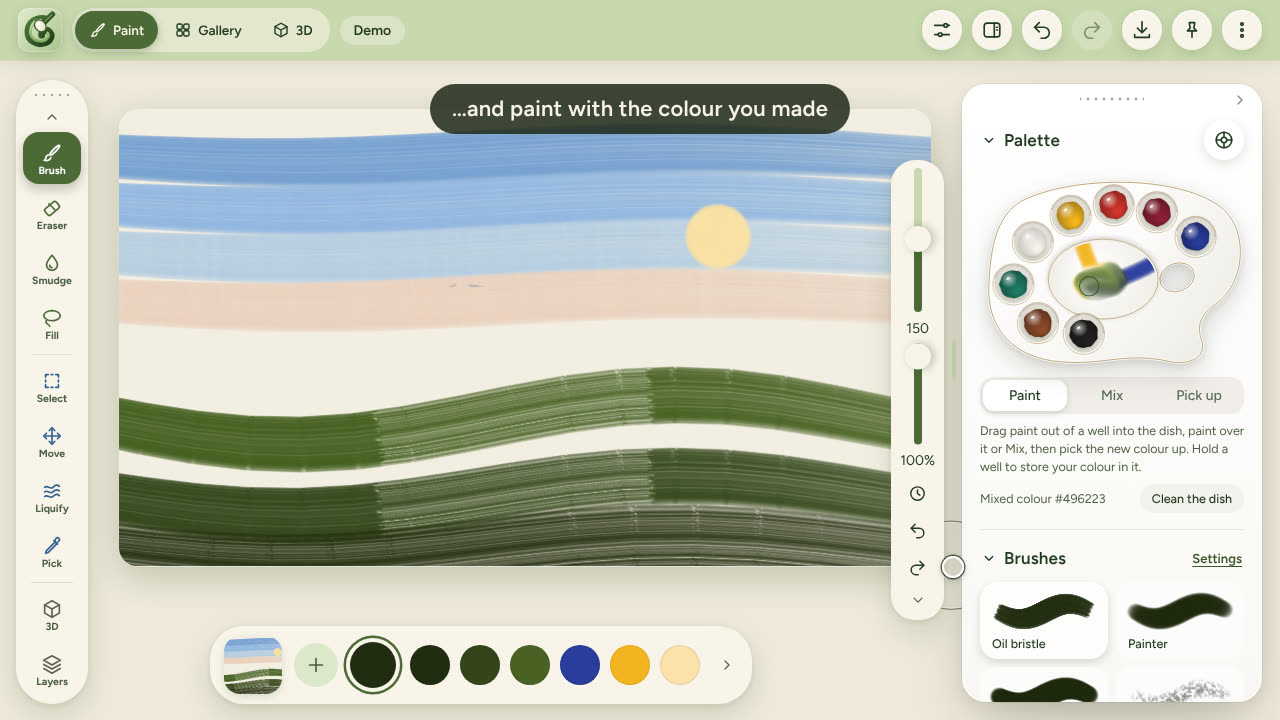
Paint as usual
Recording happens by itself, for every painting, while you work.
Open the timelapse
In the menu, choose Timelapse video.
Choose the length and the ending
Pick how long the video is and what it ends on, for example a still of the finished painting.
3D models too
In the 3D room, the timelapse shows the model turning while the paint goes on, or a turntable of the finished model.
Share it
Save the video and share it anywhere.
Tip: During the free trial, videos end with “Painted in Smudgeon”. Once you buy the app you can switch that off.
Try it yourself
Every feature, straight away, with no email. Nothing to install.